

Open the GoCal Garage listing in the Chrome Web Store, choose Add to Chrome, and confirm the installation.
Support
Set up GoCal Garage.
Work through these steps in order. Select a heading to open it; opening another step keeps the page tidy by closing the previous one.
Select the Extensions button in the top-right corner of Chrome, then find GoCal Garage in the list. Select the pin icon beside it to keep the GoCal Garage icon visible on the Chrome toolbar, making the settings easier to access in future.
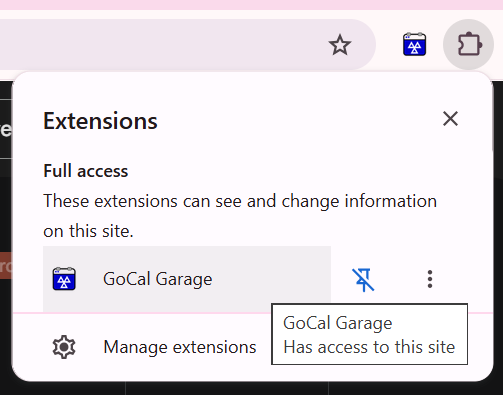
Once pinned, select the GoCal Garage icon on the toolbar whenever you need to open the extension's Options page.
When you first open the GoCal Garage settings, you'll see the Quick Setup screen. The first section shows a checkbox for accepting the terms and conditions of using GoCal Garage. Make sure this is ticked to enable you to continue setup.
GoCal Garage works with three main calendar roles: MOT Bookings, Workshop Bookings, and MOT Reminders.
Start by deciding which roles you actually need. If your garage only carries out repair work, you may only need a Workshop Bookings calendar. If you carry out MOTs as well, you’ll want to use both MOT Bookings and Workshop Bookings. If you also send reminder texts, you can add an MOT Reminders calendar to keep those separate.
Once you know which roles you’ll be using, you’ll need to make sure you have enough calendars set up in Google Calendar. By default, Google Calendar only includes one calendar, so you may need to create additional ones.
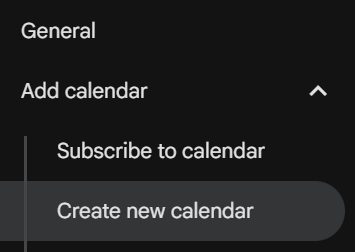
To do this, open Calendar Settings in Google Calendar, find the Add Calendar link on the left-hand menu under General and select Create New Calendar.
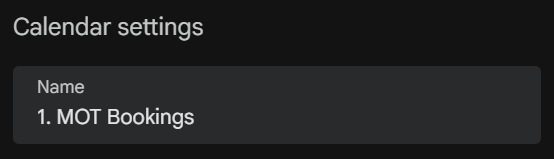
When creating your calendars, it’s helpful to follow a clear naming convention. We recommend using:
- MOT Bookings
- Workshop Bookings
- MOT Reminders
Using a numerical value before the calendar name keeps them in a consistent order otherwise Google Calendar will show them alphabetically.
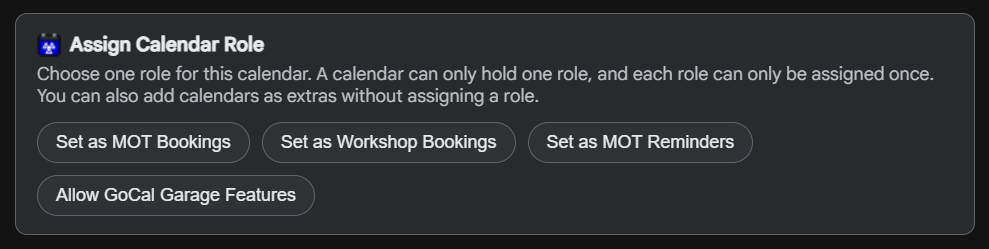
You can now assign each calendar a role for GoCal Garage. To do this, select one calendar at a time under Settings for my Calendars on the left-hand menu, then select Integrate Calendar.
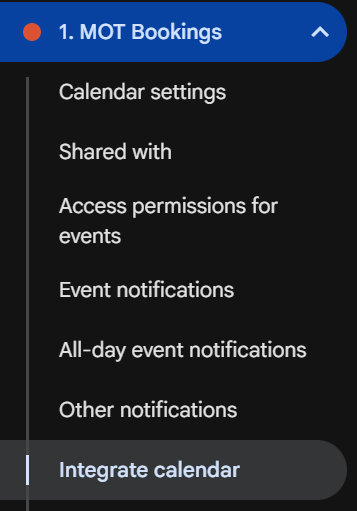
Under Assign Garage Role you may choose the desired role. The three main roles can only be assigned to one calendar each. If you'd like multiple calendars for workshop bookings where each ramp may have its own calendar, you can simply select Allow GoCal Garage Features.
GoCal Garage uses a secure Google service account to read and manage events in the calendars you assign to it.
Access to your MOT Bookings calendar allows GoCal Garage to send pre-appointment messages, identify updated MOT expiry dates and read MOT results so that result messages can be sent to customers.
GoCal Garage uses the expiry dates obtained from the MOT Bookings calendar to create new events in your MOT Reminders calendar. It also reads the MOT Reminders calendar so that reminder messages can be sent to customers before their MOT expires.
Sharing these calendars with the service account gives GoCal Garage permission to perform these specific actions without requiring access to your personal Google account. GoCal Garage can only access calendars that you explicitly share with the service account.
Each calendar used by GoCal Garage must be shared with:
mot-calendar-service@mot-calendars.iam.gserviceaccount.com
For each calendar:
- Open Google Calendar and go to the calendar's Settings and sharing page.
- Under Share with specific people or groups, select Add people and groups.
- Enter the service account email address shown above.
- Set the permission to Make changes to events.
- Select Send.
Repeat these steps for every calendar assigned a role within GoCal Garage.
Open Business Details in the GoCal Garage settings and enter the information you want to use throughout the extension. Your business name is displayed on generated documents, such as jobsheets, and can also be included in customer message templates.
You can upload a PNG, JPEG or SVG logo for use on printed jobsheets. For best results, use a logo no larger than 600 pixels wide by 140 pixels high.
From Quick Setup in GoCal Garage's settings, click the authentication link under the Contacts Authentication heading. Select the Google account associated with your calendars, then review and approve the requested permissions.
You'll see a confirmation message when authentication is complete. This securely allows the extension to access your Google Contacts to make use of suggested contacts and contact sync features.
Open Messaging Settings to review the wording used for booking confirmations, pre-appointment advice, MOT results, and MOT reminders. Check each enabled template before sending messages to customers.
Message credits are purchased separately from the GoCal Garage licence. Your remaining balance and the option to buy more credits are shown in Messaging Settings.
GoCal Garage automatically includes a 7-day free trial after installation. This gives you full access to the extension and all of its features, allowing you to evaluate whether GoCal Garage is suitable for your business.
When the free trial ends, GoCal Garage's features will be disabled unless a licence is purchased.
To purchase a licence, open Manage Licence in the extension settings and choose either a monthly or annual licence. If you already have a licence key, paste it there to apply it to this installation.